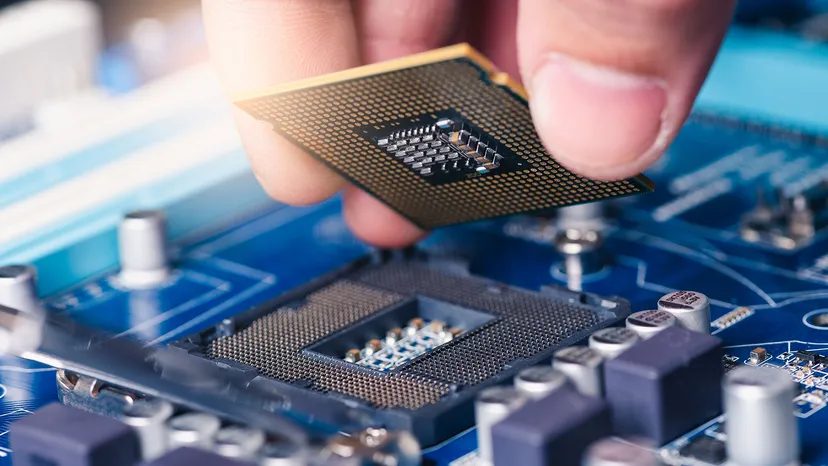
Overclocking is essentially a cheat code for your PC. It forces hardware to run faster than the engineers at the factory intended. When you push a central processing unit past its stock limits, you unlock raw performance. Your machine handles more tasks simultaneously. Video rendering finishes quicker. Games hit higher frame rates.
But there is a cost. Heat. Power consumption spikes. And manufacturers generally discourage it.
Every processor, whether a CPU or a graphics processing unit, ships with a factory speed rating. This isn’t a random number. It is a multiple of the clock speed, measured in hertz. The BIOS controller software manages this pace. Clock speed counts the cycles a CPU executes per second. We measure this in gigahertz, or billions of cycles per second.
In 2021, consumer processors typically sit between 2 and 5 gigahertz. Go back further. Older CPUs measured in megahertz. Millions of cycles per second.
Why the conservative limits? Silicon production is imperfect. Two chips from the same line are never 100 percent identical. Microscopic flaws mean every processor has unique capabilities. Even cores within a single multi-core chip vary. Chipmakers lowball performance figures to ensure uniformity across product lines. They play it safe.
The true threshold of these processors is hidden in the BIOS. Overclocking breaches that wall. It pushes hardware beyond factory limits to complete tasks faster. You can also overclock RAM and GPUs for similar boosts.
It sounds great. Make a cheap, old PC rival an expensive rig. But for inexperienced users, it is risky. Overclocking is not a cure-all. It often requires upgraded cooling and stable power delivery. It works best on PCs that already have solid hardware foundations.
If you are curious, consider the alternatives first.
CPU manufacturers have offered up a more user-friendly alternative to overclocking, called Turbo Boost on Intel processors, and Turbo Core on AMD.
These features let the CPU exceed its base frequency for short bursts. They monitor power and temperature automatically to maintain reliability. They are on by default. They are completely automatic. Manufacturers do not consider these to be overclocking. Your warranty stays intact.
Verifying Your CPU’s Overclocking Potential
Not every chip is built for speed hacks. Many consumer-grade processors, especially those crammed into laptops, come with overclocking permanently disabled. You need to check your specific model before wasting time.
Open Task Manager using Ctrl+Shift+Esc. Click the Performance tab. Look under the CPU section for the exact model designation. You will also see the base speed listed in the bottom right corner. This number tells you the starting point.
Check the manufacturer’s website for full specs. It is the most reliable source for determining if your silicon is unlocked.
Clean your system first. Dust exacerbates overheating. If your fans are clogged, pushing higher frequencies is just asking for thermal throttling or failure.
Accessing BIOS or Software Utilities
Once you confirm your processor can be overclocked, you have two paths. The traditional way involves the BIOS. Modern alternatives include software assistants from the chipmakers themselves.
Intel’s tool is the Extreme Tuning Utility (XTU). AMD offers Ryzen Master. Both run from the desktop. They monitor clock speed, power draw, and temperature in real time. Follow their respective links for installation guides.
If you prefer the BIOS route, timing is everything. On Windows 8 or 10, you hit a hotkey during boot. It is usually F1, F2, or Delete. Windows 11 users should press Escape at startup, then F10.
Hardware boots faster these days. Missing the window is easy. Use this longer method if you keep missing the key press.
- On Windows 10: Go to Settings. Select the Gear icon.
- Choose Update & Security > Recovery.
- Click Advanced Startup > Restart Now.
- When the menu appears, select Troubleshoot > Advanced Options.
- Choose UEFI Firmware Settings and confirm the restart.
Windows 11 users follow the same path, but Recovery is located under System instead of Update & Security.
Adjusting Multiplier and Voltage
Inside BIOS or your software client, two settings matter most. The CPU Multiplier and CPU Voltage.
The multiplier is your virtual clock. It syncs to a base frequency. Default is often 100 MHz. Raise it to 200 MHz. Finish the boot to see if the system holds.
If it runs stable, push up by another 100 MHz increments. Intel’s XTU includes benchmarking and stress testing apps. Use them. Verify stability at every step.
Watch temperatures closely. Exceeding 175 degrees Fahrenheit (80 degrees C) is a red flag. Dial back the speed or upgrade your fans immediately.
CPU voltage controls electricity input. Default sits around 1.25 volts. Beginners should leave this alone. Increasing voltage invites overheating.
Drawing more than 1.5 volts can permanently damage many chips. A tiny adjustment has a huge impact. With proper cooling and a better power supply, you can increase voltage in 0.05 volt increments. Proceed with caution.
The Hidden Costs of Higher Speeds
Faster computers consume more power. Your stock power supply might not handle the load. If the pack draws more current than its rating, it enters a failsafe state. This causes unexpected shutdowns.
Check the specs on your power brick. It is either plugged into the outlet or integrated into the case. A low rating like 65 watts will struggle. Upgrade to a 125-watt unit or higher.
Heat is the inevitable byproduct. More energy means more heat. Overclocking for long periods leads to excessive buildup. This results in lower performance or crashes.
Worst case? Premature component failure. Heat management is non-negotiable. Install larger fans. Or faster ones. Extreme enthusiasts build liquid cooling systems. They are complex but dissipate heat more efficiently than air.
Processors obey thermodynamics. They consume power and expel heat at a rate greater than linear to the speed gained. Eventually, you hit a “power wall.” Performance returns diminish past the point of usefulness.
Chipmakers have noticed this. They have de-emphasized raw clock speed. The focus has shifted to multi-core processors. These run more effectively than the fastest single-core ancestors ever did.
Why chase higher frequencies when adding cores yields better real-world gains? The answer lies in architecture, not just raw hertz.
Manufacturers aren’t fighting overclocking anymore. They’re handing you the keys.
Intel and AMD both provide their own software stacks now. The goal is simple: make it easier to tweak numbers without tearing your system apart. But ease of use doesn’t mean safety. It just means convenience.
“Altering the clock frequency and/or voltage outside of Intel specifications may void the processor warranty and reduce the stability, security, performance and life of the processor.”
Bennett Benson, Intel’s technical PR manager, spells it out clearly. You want more gaming power? Buy an unlocked ‘K’ SKU. Pair it with an unlocked chipset. Then adjust power, voltage, core, and memory settings. Go wild.
But here’s the catch. Break the specs, and the warranty disappears.
Intel used to soften the blow. They offered the Performance Tuning Protection Plan. No questions asked. If you fried your CPU, they replaced it. That policy vanished in March 2021. Gone.
AMD takes a similarly blunt approach. Their website warns that exceeding specified operating thresholds can cause system crashes. These crashes aren’t just annoying. They can hang your PC due to overheating. Data loss follows. And any operation beyond specifications voids the warranty.
The message is consistent. If damage is traced back to overclocking, expect a rejection. Conservative increases might not cause atypical wear. But once you activate the feature, you own the risk.
Is Overclocking Worth The Effort?
Stop before you start tweaking.
Look at Task Manager. Watch your system under load. Where is it choking?
If memory usage is maxed out, overclocking won’t help. You need more RAM. A simple upgrade solves more problems than any clock speed increase.
If your CPU is running at near-max capacity during normal tasks, you might need a new processor. More cores usually beat higher frequencies. But upgrading hardware costs money. Overclocking costs time. And risk.
The performance gain from overclocking is marginal compared to installing a new chip with more cores. However, it is cheaper. Much cheaper.
The Modern Context for Performance Tuning
Technology has changed. Multi-core CPUs are standard. Turbo Boost functions are everywhere. For the average user, manual overclocking is likely unnecessary.
A modern processor out of the box delivers performance that tech enthusiasts a decade ago would have dreamed of. It’s fast. It’s efficient. It’s enough.
That doesn’t mean overclocking is dead. It just means it’s niche.
It’s great for squeezing out extra speed during gaming or media rendering. If you need those last few frames per second, or faster render times, it’s still viable. But don’t expect miracles.
If you’re planning to do this regularly, you need hardware to support it. Upgrade your power supply. Upgrade your cooling. Keep your manufacturer’s warranty policies top of mind.
Frequently Answered Questions
Is it good to overclock your CPU?
Overclocking your CPU can increase your computer’s speed and performance. It can also increase your system’s power consumption and generate more heat.