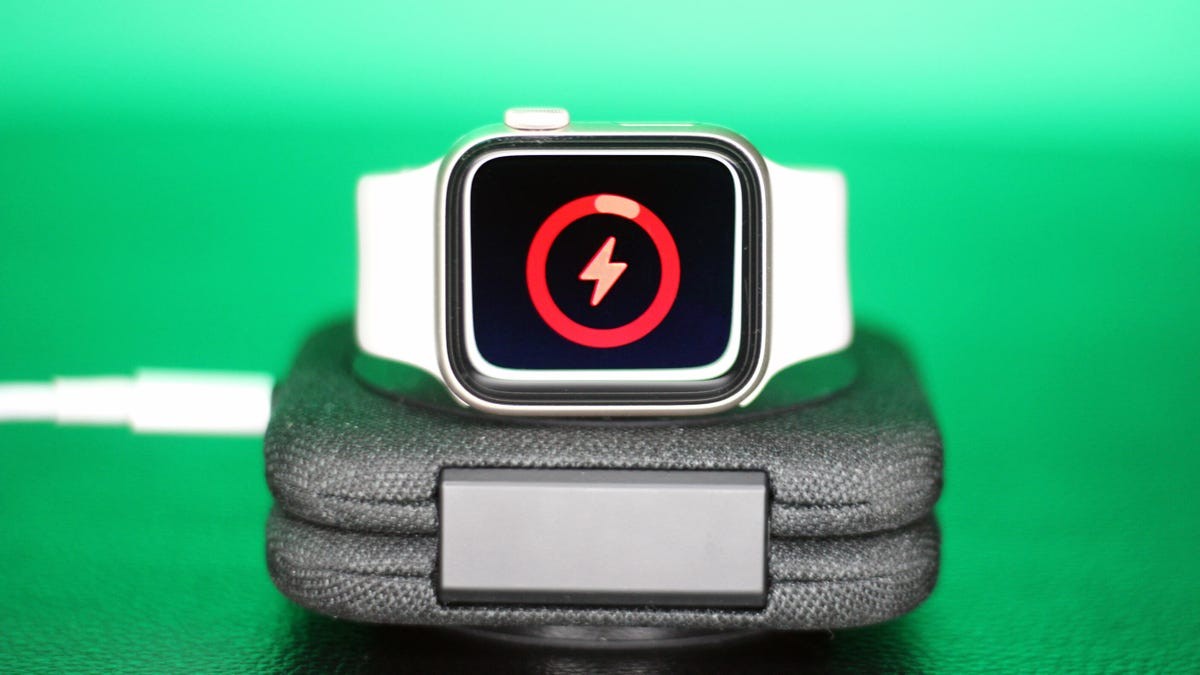
Many Apple Watch users accept nightly charging as inevitable. However, with a few adjustments, you can significantly extend your watch’s battery life, especially if you’re leveraging its advanced sleep-tracking features. These features, which monitor for conditions like sleep apnea and hypertension, require consistent use—but drain the battery faster. Here’s how to get more out of your Apple Watch between charges.
Optimize Charging for Speed and Efficiency
First, ensure you’re using a compatible charger. Apple no longer includes charging bricks with the watch, so many users rely on older, slower adapters. Apple recommends a 20-watt or higher USB-C power adapter to fully charge newer models in under an hour or provide a full night of sleep tracking in just five minutes. This is crucial if you want to take advantage of the Apple Watch’s health monitoring tools.
Trade-offs for Extended Use
For a noticeable boost, disable “Wake on Wrist Raise” and “Wake on Crown Rotation” in Settings > Display & Brightness. This prevents the screen from lighting up unnecessarily, adding up to four hours of use on compatible models. While you’ll need to tap to view notifications instead of seeing them instantly, the trade-off can be worthwhile.
Fine-Tune Display Settings
Dimming the screen brightness can also extend battery life, especially in well-lit environments. Reduce the brightness to its lowest setting in Display & Brightness. This adjustment can add one to two extra hours between charges.
Simplify Your Watch Face
Complex watch faces with animations or constantly updating complications drain power faster. Opt for simpler, darker faces with fewer active elements. Apple doesn’t provide a battery usage score for faces, but minimalist options like Activity Digital or X-Large will preserve more power.
When All Else Fails: Low Power Mode and Always-On Display
For extreme situations, disable the always-on display (Settings > Display & Brightness ) to gain up to six hours of battery life. This requires raising your wrist to activate the screen, but it’s effective when you need maximum endurance.
Alternatively, activate Low Power Mode (accessible via the Control Center) when the battery hits 15%. This disables certain features, such as background measurements and delays notifications, but preserves enough power for critical functions.
Monitor Battery Health
If battery life remains poor after these adjustments, check its health (Settings > Battery > Battery Health > Maximum Capacity ). If capacity falls below 80%, consider a replacement ($99 through Apple) or upgrading to a newer model.
The Ultra Advantage
For the longest battery life, the Apple Watch Ultra line (especially the Ultra 3) is the best option. It consistently delivers 42 to 48 hours on a single charge, even with features enabled. The Series 11 offers up to 30 hours with sleep tracking and exercise. Larger models also tend to last longer, so the 46mm Series 11 outperforms the 42mm.
Ultimately, maximizing your Apple Watch’s battery life requires a balance of adjustments and smart usage. By implementing these tricks, you can unlock the full potential of your device without constantly reaching for the charger.