Point the camera at a random object. Within seconds, your phone will recognize what it is. This is Google Lens in action. It’s more than just a search bar on the camera. This is an artificial intelligence layer that sits on top of visual reality. It interprets the world (literally) through a lens and superimposes digital information on physical objects.
This technology works by analyzing images in real time. There is no need to write a description. This application identifies plants, animals, monuments and products. It reads the text. Translate languages. Extract the data. The goal is simple. It’s about bridging the gap between the physical world and digital services.
How Google Lens recognizes objects and text
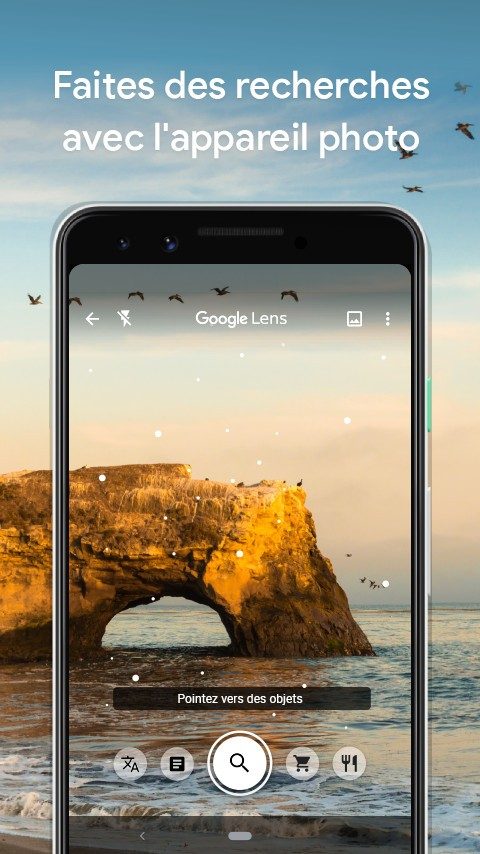
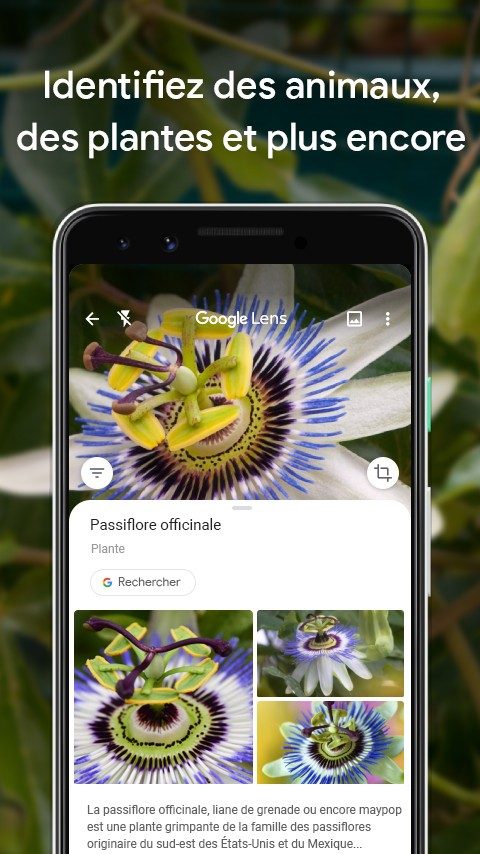
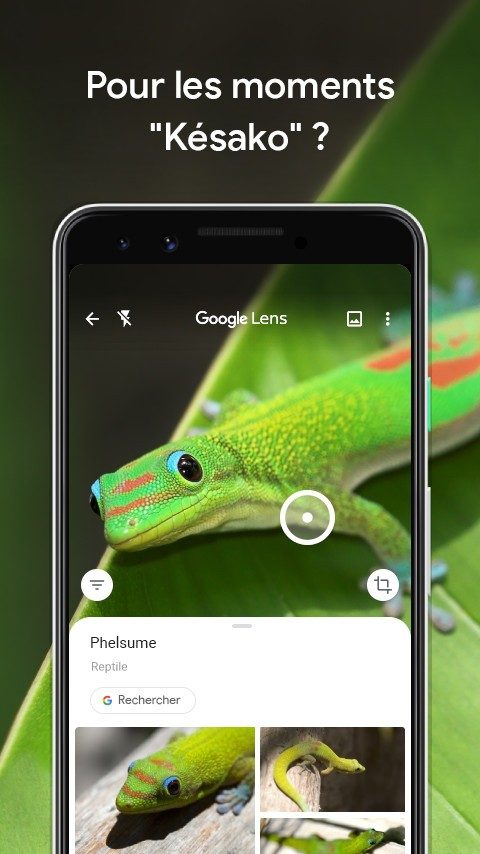
The central function is visual recognition. Google classifies the image recorded by your camera using advanced image algorithms. This goes far beyond basic pattern matching. The system can distinguish between sneakers of a certain brand and ordinary running shoes. Identify the types of flowers and explain how to care for them.
Text recognition is another key pillar. The lens can record handwritten notes and printed documents. Convert pixel to editable text. Users can copy recipes from the restaurant’s menu directly into the Notes application. You can extract phone numbers from business cards and add them to your contact information. This reduces manual input errors and saves time.
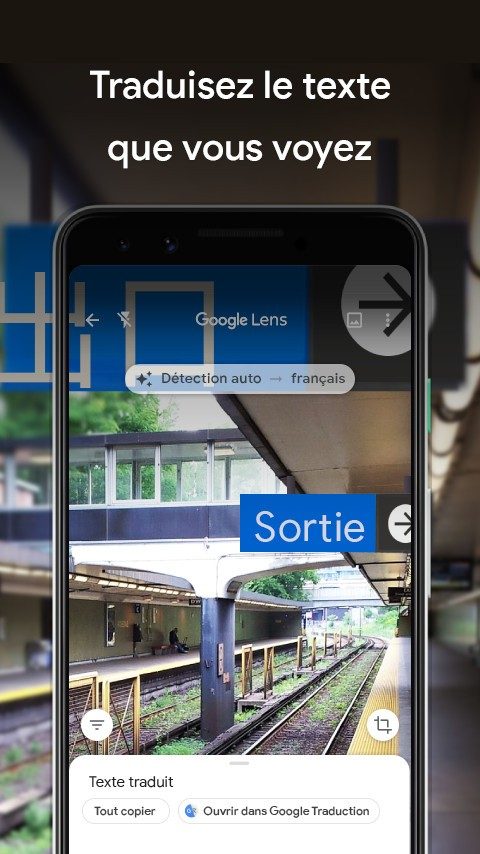
The translation is immediate. Point your camera at the foreign language sign. This app overlays the translation with the original language font and layout. This makes traveling and browsing international content much easier. The accuracy varies depending on the language and lighting, but the ease of use is undeniable.
Where to find Google Lens
This tool is built into the Google app on most Android devices. It is also integrated with Google Photos. When you take a picture, you can usually trigger the lens from there. For iPhone users, it is available as a standalone app from Apple’s App Store. It is free to download and use.
Accessibility is key. You don’t need a new powerful phone. Older models also work, but speeds may vary. The user interface is small. Open the app, point the camera and wait. The results are displayed as an overlay or as a pop-up card. Clicking a result usually opens a new application or web page. This seamless handoff is what makes it useful.
Why Google Lens dominates visual search
Other tools exist. Microsoft Bing offers visual search. Special applications can identify plants and animals. However, Google Lens has clear advantages. Integrated into the Google ecosystem. Your search history and Google account information can help narrow down your results. The integration is deeper than in standalone applications.
The scope of functionality is important. One tool does it all. You don’t need three different applications for translation, plant identification and saving text. This integration reduces friction. Users keep one app open instead of context switching. The results are usually accurate and fast.
Practical uses beyond casual curiosity
教育从这项技术中受益匪浅。 Students can scan math equations to get step-by-step solutions. Language learners can read foreign texts with immediate translation. This turns any surface into a learning tool.
日常任务变得更快。 当您可以即时翻译食材时,烹饪就会变得更加容易。 当您可以通过扫描条形码比较价格时,购物变得更加简单。 当您可以使用某些版本的增强现实功能直观地看到椅子在房间中的外观时,家具购物就会有所改善。
研究和互动之间的界限变得模糊。 你不再是一个被动的观察者。 您是您所在环境的积极参与者。 数据立即从世界流向您的屏幕。 这改变了我们学习和决策的方式。
The limits of visual intelligence
这不是魔法。 照明影响准确性。 移动物体会导致模糊。 复杂的场景使算法变得混乱。 您可能会得到近似匹配的商品,而不是完全相同的商品。 隐私也是一个考虑因素。 该应用程序不断访问您的相机和位置数据。 谷歌利用这些数据来改进其模型。 您是否接受这种权衡取决于您的隐私立场。
尽管如此,对于大多数人来说,实用性还是超过了缺点。 它将智能手机变成了通用翻译器和标识符。 该技术随着每次更新而改进。 新功能定期推出。 视觉搜索的未来是光明的。
What will you scan next?
Where to download Google Lens for free
Installing Google Lens is easy. It’s completely free. There are no premium tiers that interfere with core functionality. An educational license is not required. Google offers open access to everyone.
On Android, the app may already be installed on your phone. Check out the Camera app. Look for the lens icon. It may even be hidden in the main Google app. You may not need to download anything new. If you have an older device, visit the Google Play Store. Search for “Google Lens”. Tap install. You only need one click.
iPhone and iPad users face a slightly different setup. There is no separate Lens app in the App Store. You need to download the main Google app. After installation, open it. Tap the camera icon in the search bar. This launches Lens mode. You get full visual recognition, translation and document analysis can be performed directly there.
Check the iOS version first. Not all features are supported on all older iPhones. Google has set minimum requirements. If you’re using a newer iOS, you’re fine. Some tools may not work if old updates are left.
Use Google Lens on your desktop computer
Windows, macOS, and Linux users cannot download the native Lens app. The mobile camera is at the heart of the experience. You can’t point your computer’s webcam at a menu and expect the same instant translation.
But this technology is also coming to browsers. Lens features is integrated into Google Chrome. You can analyze images directly in your browser. Right-click any photo. Select “Search image with Google Lens”. It also supports reverse image search.
Other Google services are following. Google Photos online now offers several visual search features. It is different from the mobile app. Full interactivity remains a mobile priority. However, for quick searches and extracting text, the browser does the trick.
Why you need to update often
It is important to keep Google Lens up to date. Updates don’t just fix bugs. They add new object recognition. Language support has expanded. They improve accuracy of complex documents.
Automatic updates usually handle this. If it hasn’t been updated, visit Play Store or App Store. Check the app page. Click Update. In some cases, manual intervention may be necessary.
Do not try to install older versions. Old builds lack security patches. They miss new features. They might even break on newer operating systems. Google recommends using the latest version.
The difference between versions can be very large. With upgrades, you may suddenly be able to identify rare plants. The following features will improve your ability to read fine print. Staying back leaves you guessing. These tools are evolving rapidly. Why limit yourself?
Some users complain about privacy. Lens scans what you look at. Google uses this information to improve its models. You can adjust the settings. But the core function requires access. That’s the compromise.
The desktop experience has yet to catch up. We expect deeper integration with browsers. Until then, the phone is the primary tool. Keep it charged. Stay updated. The world is full of texts and objects waiting to be decoded.
Beyond cognition: Situated action and ecosystem integration
Google Lens does more than just view. It acts.
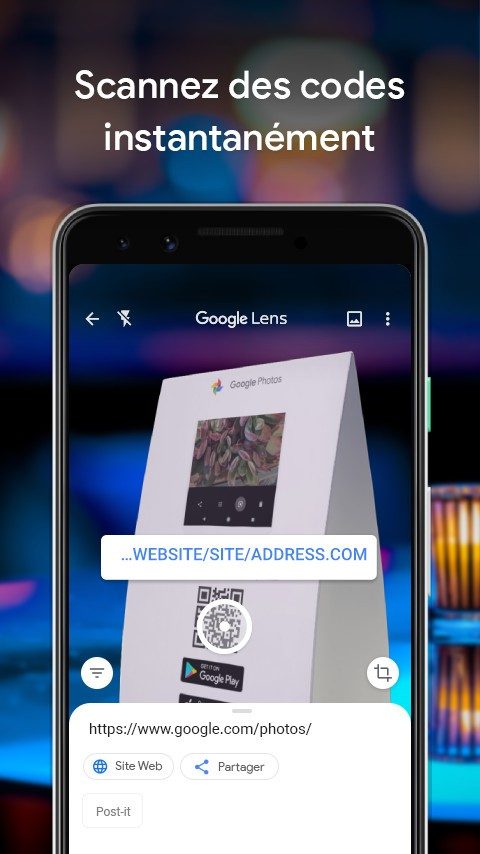
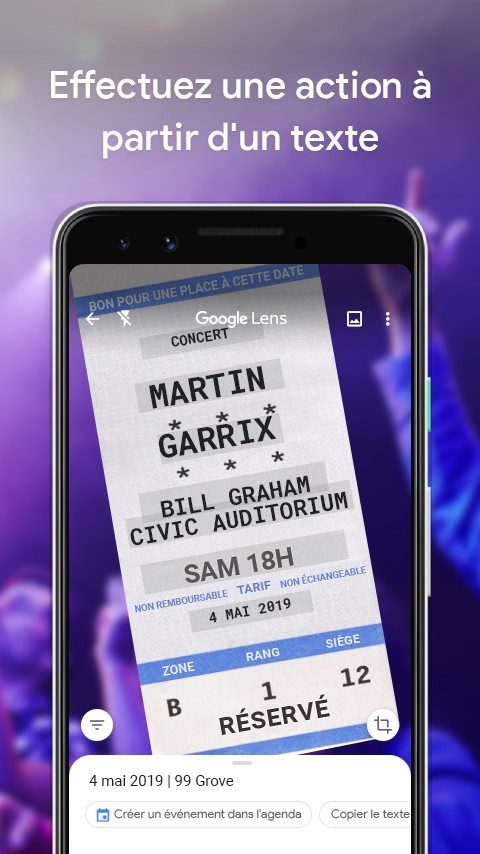
Real power doesn’t lie in the camera roll. It’s the immediate, contextual actions that is performed immediately after scanning. Point your phone at a business card. This app does more than just OCR text. You can add contacts directly to Google contacts. Scan a conference flyer? You will be prompted to add the session to Google Calendar. See a handwritten Wi-Fi password on a whiteboard? Click on it. Connect.
This is where the tool changes from a passive spectator to an active assistant.
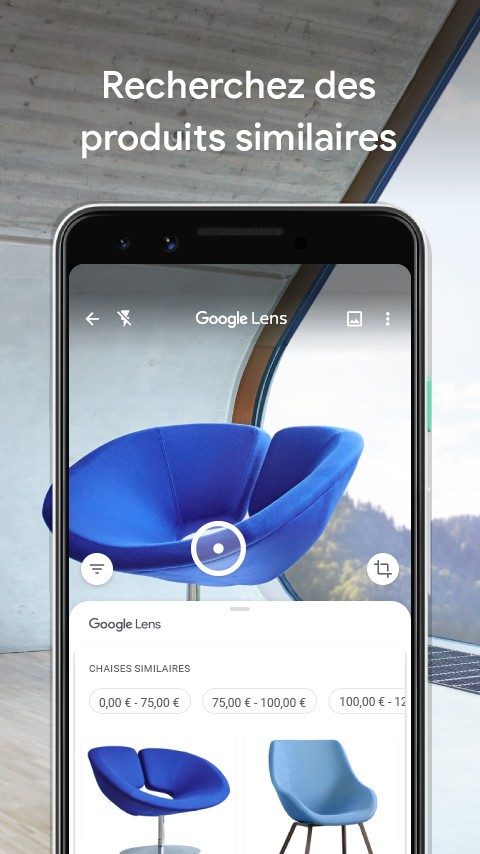
The commerce angle is equally aggressive. Point at a barcode or a product tag in a physical store. Lens doesn’t just identify the item. It pulls up price comparisons across retailers. Look for visually similar products. It aggregates online reviews instantly. No more guessing if the deal is good or not. The information is in your hands.
Accessibility and Cross-Device Continuity
For users with visual impairments or dyslexia, the lens is no longer just a tool; it is an important utility. It vocalizes captured text automatically. It provides assisted visual translation. Democratize access to printed information in a way that no other tool can.
And the workflow doesn’t stop at the phone.
The flexibility of the ecosystem is remarkable. Start the search on your mobile device. Pick it up on a tablet. Continue in your browser using Chrome or Google Photos on your desktop. This continuity between devices allows for seamless switching. Whether it’s a field trip or a shared office environment, your environment is with you.
The Engine Under the Hood: Neural Networks and Privacy
These improvements are not magic. They are the result of evolving neural networks and massive data collection.
Let’s take a look at the features that have improved over the years.
* Recognition of handwritten text. ** Handle messy cursive handwriting more clearly and accurately.
Formula recognition. ** Take a photo of a complex algebra problem. The lens recognizes the texture and resolves it.
**Smart removal. ** Extract phone numbers and addresses from dense blocks of text without manual selection.
Google emphasizes that these improvements comply with its privacy practices and privacy rules. The data processing is rigorous. The intent is utility, not surveillance.
Educational and Professional Utility
Lens speeds up information retrieval in academic and professional settings. Teachers, students and researchers use it to quickly interpret environments. It supports an active approach to scientific exploration. You verify sources. You check facts. You don’t just guess.
This turns the physical world into a searchable and verifiable database.
Admission: Free, no restrictions
Let’s clear up some common misconceptions. Google Lens is completely free.
There is no advanced level. There is no student discount. If you do not have a business license, you must consult with your sales representative. There is no need to link your credit card. Connecting to Google services improves your user experience, but core functions may not require a Google account.
This is a utility disguised as a consumer application.
Learning curve and certifications
There is no official Google Lens Certified Professional exam. We cannot find a specific certification path for this tool.
However, Google offers plenty of resources. Tutorials, video tutorials and practice guides are everywhere. Popular Google Workspace training modules for schools and businesses often have a special Lens section. The learning curve is flat. The documentation is public.
Compatibility and technical requirements
Device support is extensive, but not universal.
- Android: Works with the latest smartphones and tablets. Older devices may have problems with camera interaction or smoothness.
- iOS: Fully supported on iPhone and iPad that meet specification requirements.
Internet connection is key. While some image recognition can be performed locally for basic tasks, optimal performance requires connectivity. Slow Wi-Fi can ruin your experience.
Things change with every update from Google. New features have been removed. The elderly are sophisticated. The user experience adapts to the changing needs of professionals, students, technology enthusiasts and others. It is not static. This is the tool of life. And our ability to read the world around us is getting better and better.
Using Google Lens Before you can easily translate or search for products, you need to understand what it really takes to work. This is not magic. This software is highly dependent on an internet connection and a suitable camera.
The application is designed for smartphones and tablets. It won’t work on desktop towers unless you use certain workarounds. Google distributes it through its official channels: Google Play Store for Android and Google Search app for iOS. This is not just for convenience. Make sure you get security patches and feature updates without searching for third-party APKs or questionable websites.
The economic model is simple. It’s free. No subscriptions. No in-app purchases are required to unlock the translation engine or object detection features. It’s in the Utilities category, along with tools that help you identify plants, scan barcodes, and extract text from handwritten notes.
What equipment and permits are needed?
Technically, Google Lens has lightweight on storage, but it also has high connectivity requirements. You need a stable a stable Internet connection. The visual search engine, language translation model and product identification databases are all cloud-based. They are not on your phone.
Here is what you’re signing up for:
- Camera access: Non-negotiable. You have to point to something.
- Media access: You must read Gallery to scan the photos you have taken.
- Network Data: Essential for real-time OCR and real-time translation.
- Operating Systems: Android and iOS (iPhone/iPad).
On Android, Lens is often baked directly in the camera app or in the Google search bar. On iOS, it’s hidden in the main Google app. This integration is a double-edged sword. This makes it smoother to use, but on iOS it feels more like an embedded feature of a larger utility than a stand-alone powerful feature.
The desktop experience is fragmented. You can use Lens visual search in Google Chrome on Windows or Mac. You can also use it from Google Photos. However, this is not a full desktop application in the traditional sense. This is a browser extension or web interface.
Who is this for?
The target audience is everyone. Students scanning textbook diagrams in their textbooks. Travelers translating street signs. Shoppers comparing prices. This utility covers personal and professional use cases.
Privacy is a common concern in Google services. The application collects data to improve the model. You can limit the amount of visual search history that can be saved by adjusting the activity controls in your Google account. If you use this feature in a business environment or work with sensitive documents, check these setup before pointing the camera at sensitive material.
Good, bad, blurry
Google Lens is a powerful visual recognition tool. Use computer vision and artificial intelligence to recognize objects, extract text with OCR, and translate languages in real time. The user interface is overall smooth. In Android, the camera integration feels native. You point, you tap, you get the results.
But it also has its limits.
The quality of the output depends entirely on the input. Is the light bad? The results were not good. A shaky hand? Blurry text. Is there a rare plant species about which there is little information in the Google database? Maybe you’ll see a generic “flower” tag instead of a specific name. This system has trouble handling obscure objects and highly stylized art.
Internet reliance is the biggest bottleneck. Some of the basic optical character recognition may work locally, but the heavy lifting (translation, product lookup, detailed object ID) requires the cloud. If you’re traveling in a remote area with poor service, Lens becomes significantly less useful.
In iOS, the workflow is slightly clunkier. You need to open the Google app, go to Lens and start scanning. This isn’t as immediate as pointing the camera at a menu and seeing a translation overlay, which is possible on many Android devices.
Should I download it?
If you rely on visual search, the answer is yes. The value proposition as a free tool is strong. Save time. Reduce friction in everyday tasks such as identifying products and translating a sign.
But don’t expect perfection. Test in your own environment. Scan text. Translate a phrase. Identify household items. Learn how the lighting conditions in your home affect accuracy. Then adjust your privacy setup to your comfort level.
This is a powerful utility, but its effectiveness depends on the connection and camera lens. Keep expectations grounded. Although this technology is impressive, it is not perfect. You need to double-check those translations. And you still have to stare at that blurry receipt.
The real advantage here is the ecosystem integration Once you get used to how you get information from Maps, Chrome, and Photos, it’s more than just an app. It becomes a layer of your digital life. A way to interact with the physical world through screens.
It works. Mostly. If not, it’s usually because the lighting is wrong or the WiFi dropped. Just aim steady. Fast connection. Trust the data, but verify it.
This request could not be completed because no source article was provided. Paste the article text you want to rewrite. Create content according to defined style, SEO and formatting guidelines.