Apple finally pushed the iOS 27 public beta out the door. It’s been sitting with developers for weeks. Now, anyone with an iPhone and a pulse can jump in. Don’t confuse this with the final product. The real launch waits until September. But this build is stable enough to test. It’s polished. It works. And it hides some surprises.
Most people scroll past beta software. Smart users dive in. They see what’s coming before the hype trains roll in.
“The public beta is the first stable release.”
Here is what actually matters. Not every update changes how you live. Some of these do.
What to expect in the iOS 27 public beta
First off. Get your location out of the European Union if you care about the new AI tools. Apple’s spat with regulators keeps features like Siri Intelligence locked behind a paywall of bureaucracy in Europe and China. It’s frustrating. The timeline? Murky at best. If you are in the US, you’re good to go.
For the rest of the world? You still get the UI changes. The rest? You might not.
Here are the eight features worth your attention.
Siri AI and the death of small talk
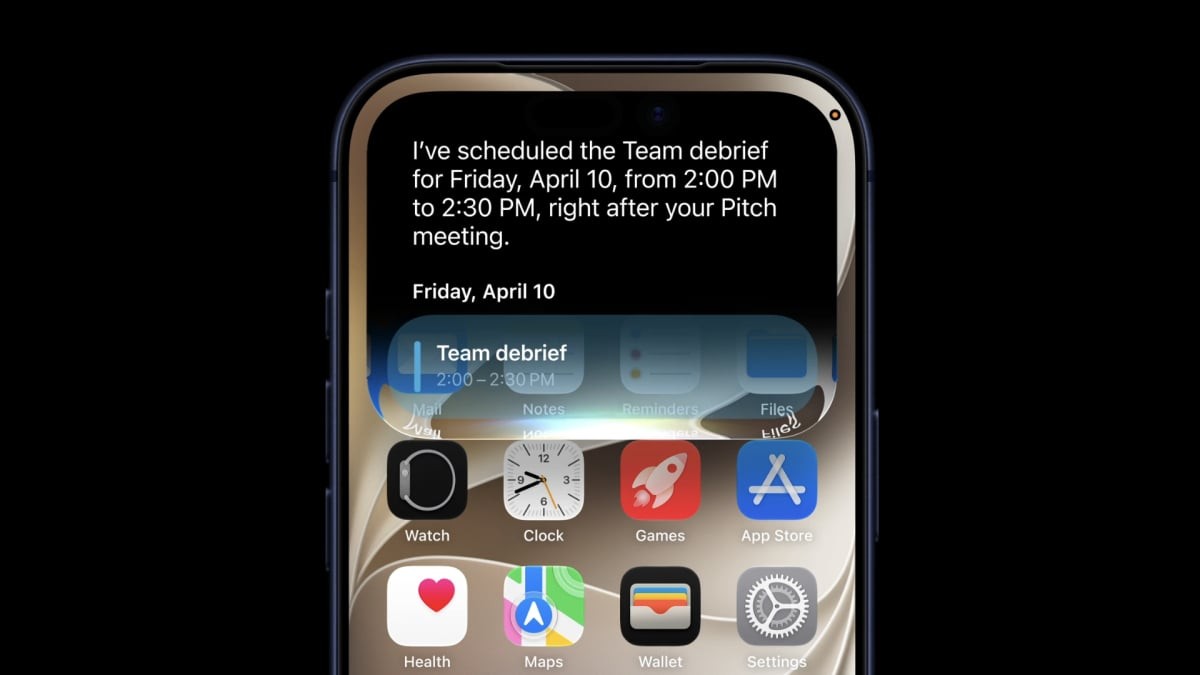
Siri used to be a novelty. Now it’s trying to be a helper. Access is flexible. You can say “Hey Siri.” You can hold the side button. Or swipe down from the Dynamic Island. Once it’s awake, the behavior changes.
It scans your device. Locally. It finds documents, emails, and photos. It answers questions about the web page sitting in front of you. It recommends dinner spots. It even builds HomeKit automations based on plain English commands. No complex scripts needed. Just talk to it.
Visual Intelligence works through your lens
Another one blocked in Europe. Shame on that.
Visual Intelligence lets your camera do heavy lifting. Point your lens at a thing. Get info back. It identifies plants. Animals. Business hours. It splits restaurant bills by recognizing line items. It’s practical magic.
You trigger it via the Camera Control button if your phone has one. If not, customize your Action button or Lock screen. Or dig through Control Center. It’s there. You just have to look.
Child Safety actually makes sense now
Parental controls were always a headache. You’d spend twenty minutes restricting YouTube. Kid would still watch cat videos for three hours. iOS 27 fixes the logic.
The setup is simpler. Controls are granular. Screen time limits are less annoying. Communication Safety intercepts gore and violence before it hits the screen during Messages or FaceTime. You can pause device usage entirely. Or open it up wide. The toggle exists. Finally.
AI-enhanced photo tools for bad shots
We’ve all taken that blurry photo. Or framed it wrong. Apple added AI tools to save it. Under the “Tools” section in the Photos editor, you get three tricks.
- Clean Up : Remove that tourist from the background with a tap.
- Extend : AI generates new borders. Useful if you cropped too tight.
- Reframe : Adjust the perspective automatically.
It’s not perfect. But it saves more shots than you’d expect.
Image Playground goes photorealistic
Remember when Image Playground made only cartoons? Those days are gone. iOS 27 generates realistic images. If the first attempt sucks, you don’t start over. You refine. Add prompts. Highlight the specific part of the image you want to change. It iterates.
Again. EU users are left out in the cold.
Shortcuts for people who hate coding
Who remembers when Shortcuts felt like programming? It didn’t have to be this way. Apple realized that. So they added a description field.
Open the Shortcuts app. Hit New. Type out what you want. “Turn on lights. Enable Do Not Disturb. Play Jazz.” The AI builds the chain of actions. It automates the boring stuff without dragging boxes around on a canvas.
Tweak the Liquid Glass
iOS 27 brought “Liquid Glass” design. It’s shiny. It’s translucent. Some people love it. Some hate how it hurts their eyes.
You can control the clarity now. Go to Settings. Then Appearance. Slide the bar left for maximum clarity. Right for a tinted look. It’s a small detail. But accessibility matters. Readability beats aesthetics when your eyes are tired.
Finally, custom EQ for AirPods
Wait for what? Decades.
AirPods get a full equalizer. Bass, midrange, treble. Adjust it all. It’s hidden a bit. Go to Bluetooth settings. Tap the info icon next to your AirPods. Find Audio and Routing. Select Equalizer. Pick Custom.
You can dial in exactly the sound you want. No third-party apps required. It should have happened in iOS 14. But here we are. Better late than never? Maybe.