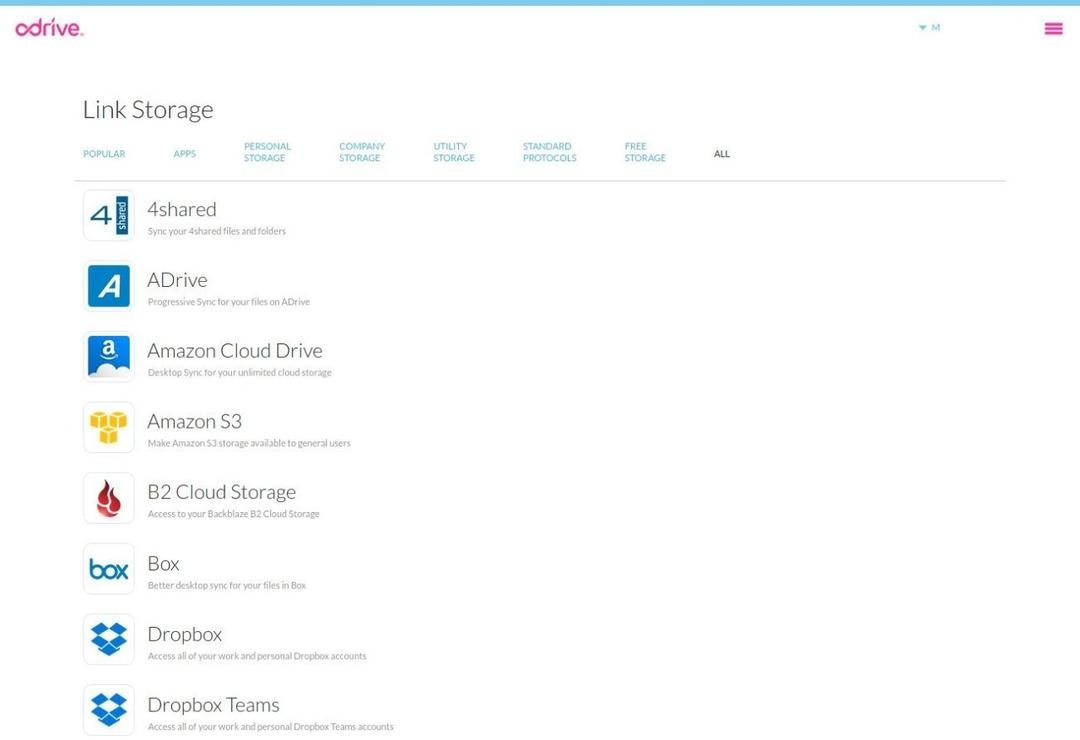
Odrive isn’t just another cloud sync tool. It’s a centralized hub designed to stop the juggling act between disparate storage providers. If you are tired of logging into separate accounts for Google Drive, Dropbox, OneDrive, or Amazon Cloud Drive, this software aggregates them into a single interface. The goal is simple: manage and transfer files across platforms without downloading everything locally first. It targets professionals, teams, and individuals who need to move data between services like FTP, SFTP, and standard protocols without the friction of manual uploads.
The core advantage here is smart synchronization. You see the entire tree of your remote files, but they stay in the cloud until you actually need them. This on-demand approach saves significant bandwidth and local disk space. You aren’t mirroring petabytes of data to your hard drive. The software works offline too. It caches the files you need temporarily. When you reconnect, it detects changes and resynchronizes automatically. This workflow is built for productivity, using encrypted protocols to keep transfers secure while automating repetitive tasks.
Why Odrive Stands Out Against RaiDrive or MultCloud
The market is crowded. Tools like RaiDrive, MultCloud, and CloudMounter exist. So why look at Odrive? The difference lies in depth and automation. Competitors often limit you to one or two cloud services. Odrive supports a vast array of connectors. It focuses heavily on customizable sync rules. Whether you are backing up data, collaborating on shared projects, or moving data between incompatible platforms, Odrive attempts to handle those cross-platform workflows. It’s less about just viewing files and more about managing the logic of how they move.
The platform flexibility is also notable. You get desktop apps for Windows, macOS, and Linux. You also get a web service accessible via modern browsers. This matters for mobility. Use it at the office, on the road, or on a home network. The interface is designed to be intuitive, reducing the learning curve for non-technical users. It doesn’t feel like a developer tool. It feels like a standard file manager that happens to speak many cloud languages.
Installation and Cross-Platform Compatibility
Getting started is straightforward. Download the package from the official site or a trusted distributor. The installer guides you through the process. It’s free for the base version. On Windows and macOS, you follow standard on-screen prompts. Linux users have more control, using terminal commands suited to their specific distribution. Once installed, Odrive integrates directly into the native file explorer.
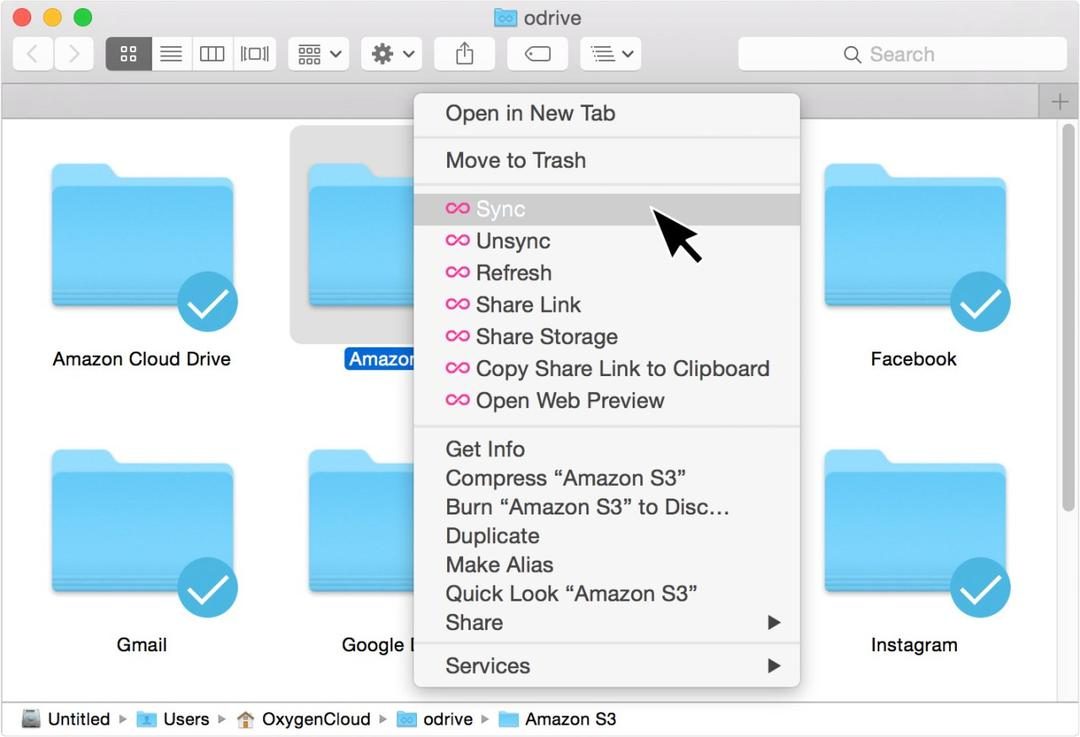
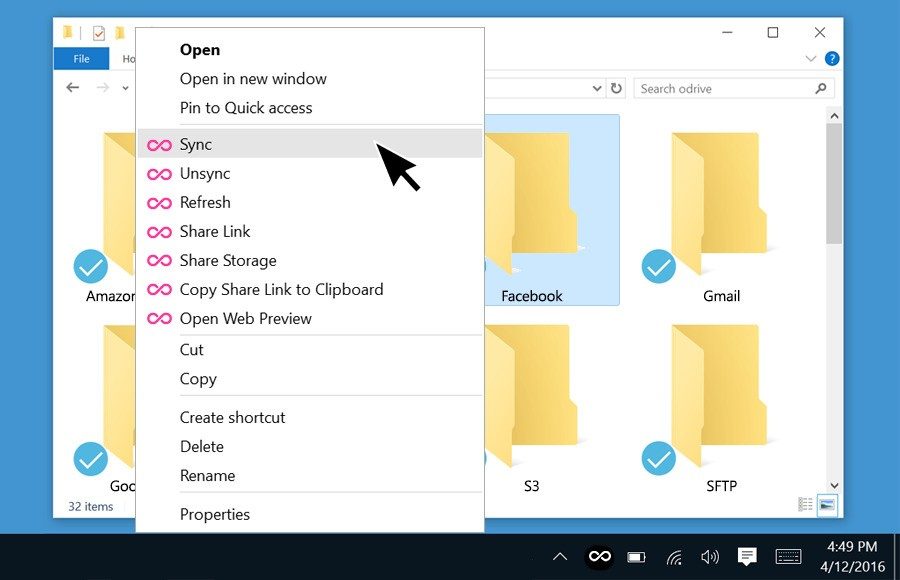
On Windows, it adds an Odrive node to File Explorer. On macOS, it uses Finder. On Linux, it works with Nautilus, Dolphin, or other file managers. This native integration means you don’t need a separate window to drag and drop files. You interact with them exactly as you would with local folders.
If you don’t want to install software—maybe you’re on a shared machine or a public kiosk—the web interface is the answer. You can manage your cloud data directly in the browser. This leaves no local traces on the device. It’s ideal for quick access from anywhere. However, note that there is no native mobile app for Android or iOS. You must use the mobile browser version for those devices.
The On-Demand Philosophy in Practice
This “on-demand” model changes how you handle large files. Media assets, archives, and large documents stay in the cloud. They only occupy space on your device when you open them. This is crucial for users with limited SSD space or those who work with high-resolution video and design files. You get the convenience of local access without the storage penalty.
The software also handles the connectivity gaps gracefully. Disconnect from Wi-Fi? The files you’ve already viewed or cached remain accessible. Reconnect? The sync engine kicks in, uploading changes and pulling down new updates. It’s not perfect. Sometimes sync conflicts arise if multiple devices edit the same file. But for general use, it smooths out the rough edges of multi-cloud management.
Is It Worth the Switch?
For users entrenched in a single provider, Odrive might be overkill. But if your workflow requires juggling five different cloud services, the consolidation offers a tangible time saving. The automation capabilities reduce manual errors. The centralized view provides clarity. The main trade-off is reliance on a third-party bridge between your data and your devices. You are trusting Odrive with the handoff between your local machine and the cloud providers.
The lack of a native mobile app is a notable gap for some. If you need deep integration on an iPhone or Android tablet, you’ll have to use the web view, which can feel clunky compared to native apps. But for desktop-centric workflows, the integration is tight. It respects the OS file structures. It doesn’t try to reinvent the wheel. It just makes the wheel roll between more types of terrain.
The software continues to evolve. As cloud providers change their APIs, Odrive often updates its connectors to match. This means the tool remains relevant even as the underlying services shift. It’s not a static piece of code. It’s a dynamic adapter in a fragmented ecosystem.
The question isn’t whether cloud storage is the future. It’s whether we can manage it without losing our minds. Odrive offers one answer. It’s not the only answer. But for those drowning in tabs and logins, it provides a way to surface the data without sinking the machine.
You want to get started without staring at a blank terminal. Odrive doesn’t make you guess. The team provides a sprawling documentation hub that actually covers the messy edge cases most tools ignore.
It’s not just a basic FAQ. It’s a living resource.
Most common questions get answered instantly. But here’s where it gets useful for power users. You can find specific instructions for linking FTP services. Need to connect Dropbox Business? It’s there. Setting up custom API keys? The guide covers that too.
The documentation handles both the initial onboarding and the complex configuration scenarios that usually break workflows.
This isn’t text-only. There are video guides sprinkled throughout. You can watch rather than read when you’re troubleshooting a sync error at 2 AM.
The community support is active. That means when the docs don’t quite hit the mark, someone else has likely asked the same weird question before. You won’t be alone in the comments.
It’s designed to get you from zero to configured quickly. No hand-holding. Just clear, searchable answers for the specific integrations you actually need.

Pricing structures and version control for Odrive
Most users start with the free tier. It works. You get central management for multiple cloud accounts, delayed sync, and direct transfers between platforms. It stops you from juggling a dozen different desktop clients. If that is enough for your daily workflow, you do not need to pay.
The premium subscription changes the game for power users. Monthly or annual plans unlock bidirectional automatic synchronization. You get local file encryption. Automation options expand significantly. Support tickets move to the front of the line. Academic institutions and students sometimes qualify for discounts. You have to check directly with the vendor, as policies shift.
Updates are handled carefully. Odrive uses a phased rollout strategy. You get automatic notifications for new versions. You can also force an update manually if needed. This keeps you away from outdated, vulnerable builds. But what if the latest version breaks your workflow?
Legacy support exists for those who need it. API changes from cloud providers can be brutal. An old infrastructure might refuse a new client. In these cases, Odrive provides access to an archive of previous versions. Request it from support. Download it. Stick to a stable release until the environment catches up. This flexibility is rare in modern SaaS tools.
Transparency matters. Subscribers can check activated services at any time. Billing history is visible. Changing plans does not wipe your data. For enterprises, custom licenses are available. They handle team management. Centralized billing is an option. SSO (Single Sign-On) integration is built in. The pricing model scales from the individual freelancer to the large-scale corporate deployment.
Security, advanced features, and user support
Centralization is the baseline. The advanced features are where it gets technical. Premium users can define complex sync rules. Filter specific folders. Prioritize transfers. Orchestrate workflows that touch multiple cloud services simultaneously. This is not for casual photo backup. This is for managing critical data in a professional environment.
Security is baked into the philosophy. Data in transit gets end-to-end encryption. The sync between your local machine and the remote cloud servers is locked down. Multi-factor authentication is standard. It protects your accounts. Local disk encryption and delegated access add layers of protection for sensitive files.
There are no artificial restrictions on file types. You can sync office documents. You can move large multimedia files. Archives go through without issue. The software does not judge the content. It just moves it.
Support is a pillar, not an afterthought. There are tutorials. Video resources. Webinars. FAQs. Discussion forums. They cover everything from first login to advanced scripting. Companies can even request custom training programs. This helps with large-scale integration. It optimizes collaborative setups. It secures usage patterns.
Official Odrive certification is not yet a widespread standard. However, training modules exist to help staff become admins or references. This builds internal competence.
Adopting Odrive improves document practices. It streamlines workflows. It secures backup strategies. It reduces the chaos of fragmented cloud services. To get started, go to the official platform. Or use the Futura software library. Both offer secure, up-to-date installations. Just follow best practices. The rest is up to your configuration.

Getting Odrive running correctly means knowing what it actually needs to function, not just clicking “download.” It is a hybrid beast. You have the desktop client. You have a web interface. Both talk to the same backend. The goal is simple: make disparate cloud storage look like one local drive.
The architecture is 64-bit only. You need an x86_64 processor. This isn’t optional. The app integrates directly into your OS. On Windows, it sits in Explorer. On macOS, it appears in Finder. Linux users get a similar experience within their native file managers. This matters because you don’t need to learn a new workflow. You drag, you drop, you sync.
The feature that defines its utility is sync-on-demand. It keeps your hard drive light. Files live in the cloud until you open them. This preserves bandwidth. It also saves local disk space. For teams, this is critical. For individuals with limited SSDs, it’s a lifesaver.
Security is layered. Base encryption uses HTTPS/TLS for data in transit. That is standard. But if you pay for the premium tier, you get client-side encryption. Your files are encrypted before they leave your machine. The cloud provider cannot read them. This distinction separates casual users from those handling sensitive data.
It supports almost every protocol that matters. HTTPS. FTP. SFTP. WebDAV. This compatibility is why it works with Google Drive, Dropbox, OneDrive, and Amazon S3 out of the box. It doesn’t reinvent the wheel. It just connects the spokes.
Minimum system requirements and installation
You don’t need a supercomputer. You just need a stable internet connection and write permissions on your local machine. Free disk space is required, but only for the cache, not the entire library. The installation process is straightforward. You can download the installer from the official site or trusted repositories like Futura’s software library. Avoid sketchy mirrors. Stick to verified sources.
The license model is freemium. You can start for free. It works for basic syncing. But if you want advanced automation, higher limits, or that crucial client-side encryption, you upgrade. There is no one-size-fits-all here. The free tier is a gateway. The paid tiers are for power users who need more control.
Language support is limited. The interface and documentation are in English. If you need other languages, you might hit a wall. It’s a small friction point, but it exists.
Why the technical details matter for daily use
Most people think cloud sync is just “upload and wait.” It’s not. With Odrive, you are managing a virtual file system. When you delete a file locally, it disappears from the cloud. When you add it, it travels. The sync-on-demand feature means you can browse terabytes of data without downloading it. You only download what you click.
This changes how you work. You stop worrying about disk space. You start worrying about latency. If your connection drops, access pauses. That’s the trade-off. You gain flexibility. You lose offline redundancy unless you explicitly cache files.
The protocol support is also a backdoor for automation. Developers can use the API. Teams can script backups. Individual users can set up triggers. It’s not just a folder viewer. It’s a synchronization engine.
Who is this actually for?
It’s for anyone who uses more than one cloud provider. If you store photos on Google Drive, work documents on OneDrive, and backups on Dropbox, Odrive unifies them. You no longer switch tabs. You switch folders.
It’s also for teams. Shared spaces become easier to manage. Permissions are handled by the underlying cloud providers, but the access point is uniform.
The free version is fine for light users. But once you hit the limits, or once you need security, you pay. The value proposition is clear: convenience and consolidation. You are paying to stop juggling multiple logins and upload dialogs.
Is it perfect? No. Sync conflicts can still happen. Internet hiccups cause delays. But compared to manually managing five different desktop apps, it’s a massive simplification. You just need to respect the architecture. It’s not magic. It




The Hidden Cost of Convenience
We stopped asking about the price tag years ago. The real cost is in the data. Every tap. Every scroll. Every second of idle time where the screen stays black but the sensors stay awake. This is the new currency. And it is being mined by everyone from your bank to your toaster.
The shift wasn’t sudden. It was a slow creep. First, we traded passwords for convenience. Then, we traded privacy for personalization. Now? We are trading our digital autonomy for a slightly smoother user experience. Is that a fair trade? Probably not. But the market disagrees.
Why Big Tech Wins
The logic is simple. Data is the fuel for the AI engines that define modern software. More data means better predictions. Better predictions mean higher ad revenue. It’s a feedback loop. A vicious one.
Companies don’t just want to know what you bought. They want to know why you bought it. Where you were when you clicked. Who you were with. What you were thinking. This granular insight allows for micro-targeting that feels less like advertising and more like mind-reading. Creepy? Sure. Effective? Undeniably.
The Illusion of Control
Users think they have choices. “Opt out of targeted ads.” “Delete my history.” These buttons exist. But they are designed to be confusing. Buried. Hard to find. The default is always on. Always.
This is not an accident. It’s a feature. The path of least resistance leads to data collection. Most people won’t dig through six layers of settings to protect their privacy. They’ll just click “Accept All.” And the cycle continues.
What You Can Actually Do
You can’t win. Not entirely. But you can make the game harder for them.
- Use privacy-focused browsers. Brave or Firefox with strict tracking protection.
- Turn off location services for apps that don’t need them. Your weather app does not need your GPS history.
- Regularly audit your permissions. Go into settings. See what apps are listening. Kill the ones that aren’t essential.
- Use a password manager. Stop reusing passwords. It’s the lowest hanging fruit for security breaches.
These steps don’t make you invisible. They just make you expensive to track. And that matters.
The Future is Fragmented
Regulations like GDPR in Europe and CCPA in California are trying to level the playing field. They give users some rights. The right to be forgotten. The right to know. But enforcement is inconsistent. Global giants operate in a gray zone.
We are moving toward a fragmented web. Some parts will remain open and ad-supported. Others will be walled gardens. Subscription-only. Data-harvesting heavy. The average user will likely stay in the free tier. Paying with data.
There is no silver bullet. No single app that fixes everything. Awareness is the only shield we have left. And it’s a thin one.
Final Thoughts
The internet gave us the world. But it also gave us a panopticon. We walk through it daily. Blindfolded by convenience. The question isn’t whether we’ll be tracked. We will. The question is how much we care. And whether we’re willing to do something about it.
Or maybe we won’t.