
Photoworks is a Windows-only photo editor that sits in the sweet spot between basic apps and complex professional suites. It focuses on making image processing accessible through an intelligent automation module that handles common edits automatically. You get the control you need without the steep learning curve of Adobe Lightroom or Photoshop.
The software targets Windows users specifically. It runs on Windows XP through Windows 11, ensuring stability across a wide range of hardware. There is no official version for macOS, Linux, Android, or iOS. If you are on a different platform, you will need to find a specific alternative.
How to Download and Install Photoworks
Getting the software is straightforward. You can download the latest version directly from Futura. The process is designed to limit technical obstacles.
- Click the download button for the file suitable for your Windows version.
- The executable file is lightweight.
- Run the installer to start a guided procedure.
The installation wizard walks you through each step. It allows you to choose the installation folder and customize basic settings. No third-party software is added during the process, which keeps your system clean and respects your privacy.
Why Photoworks Works for Non-Experts
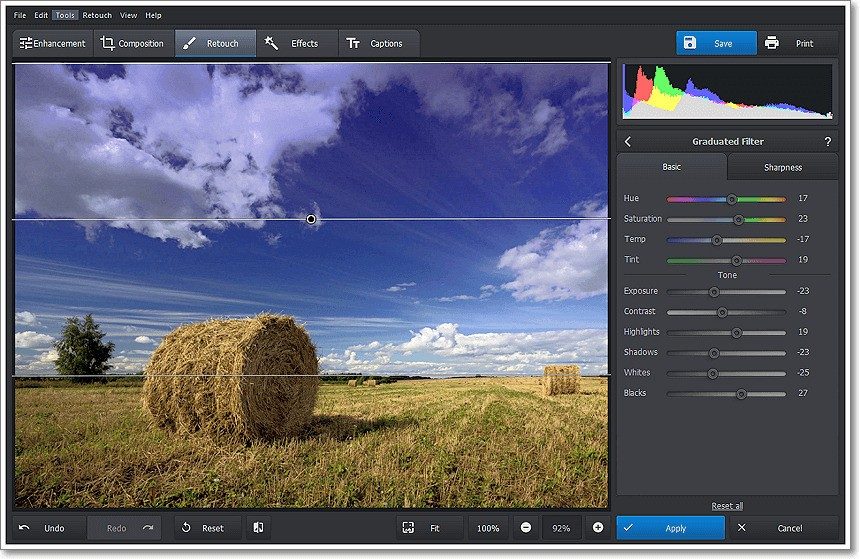
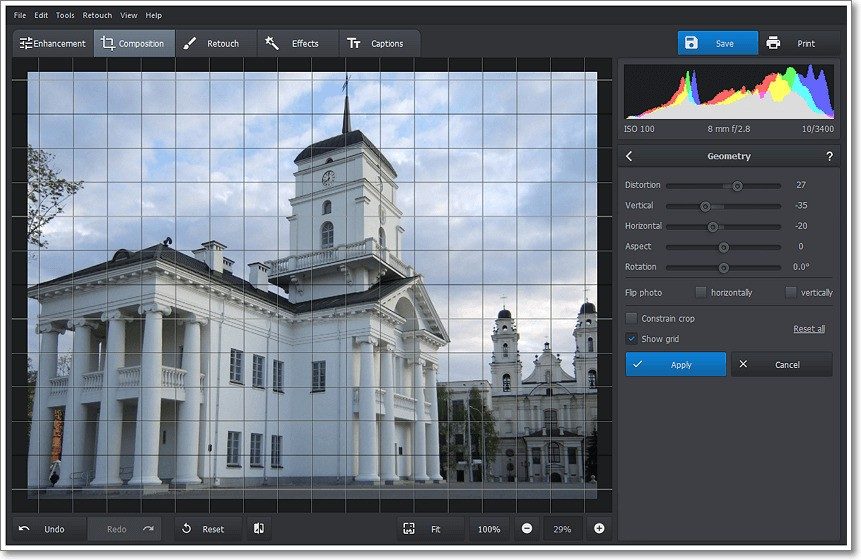
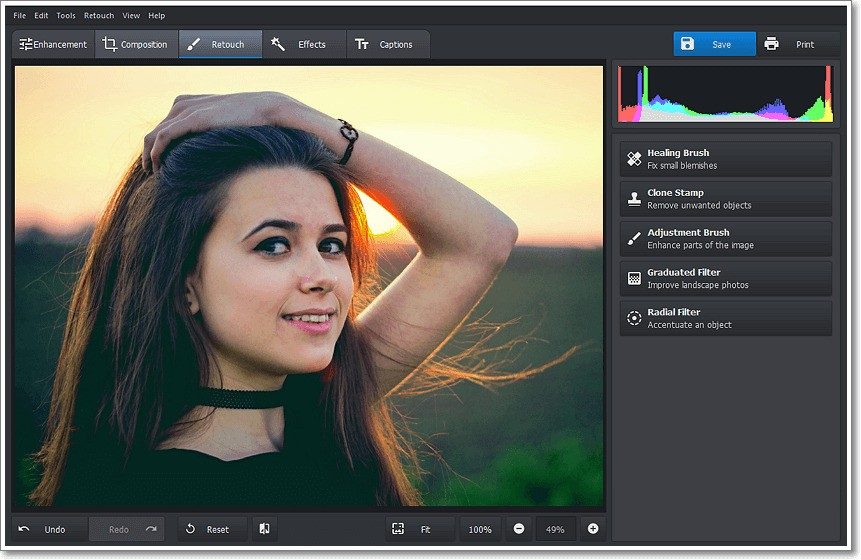
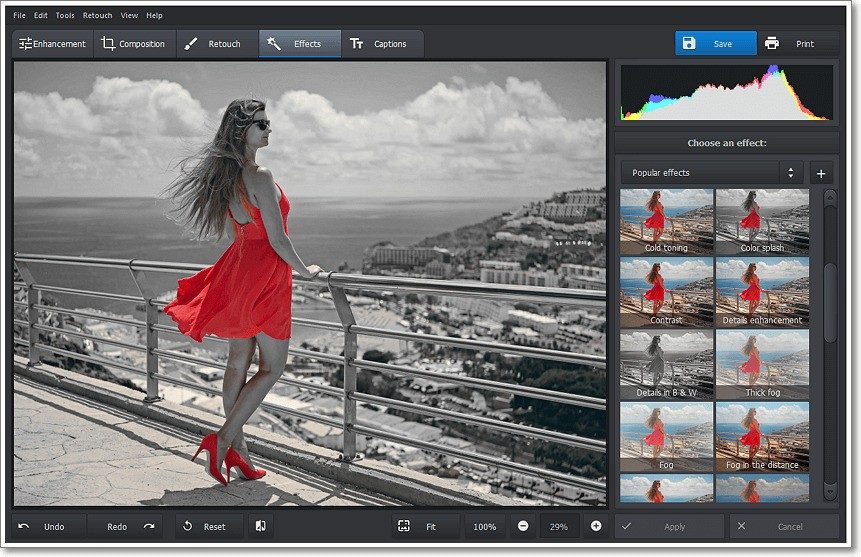
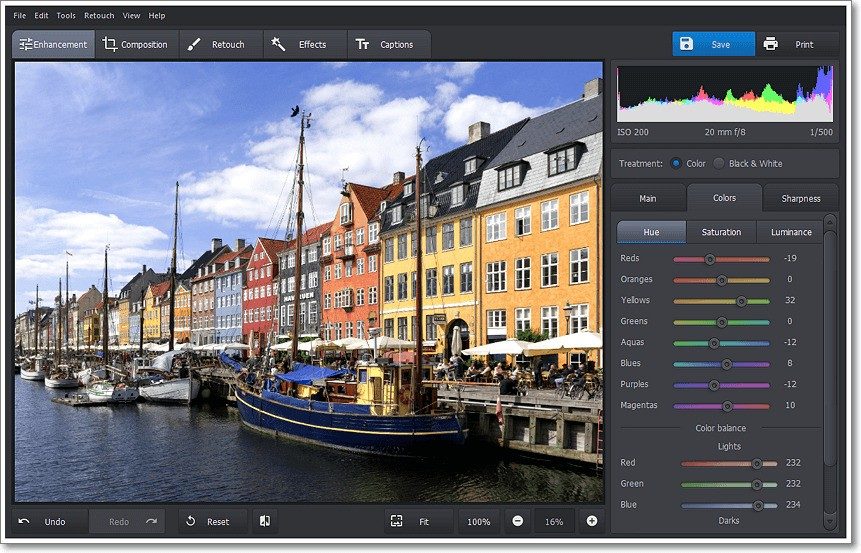
The interface is intuitive. It handles classic adjustments like brightness, contrast, and saturation. It also includes advanced features such as portrait retouching, object removal, and defect correction. You can apply stylized filters to change the mood of an image with a single click.
The focus is on automation. This saves time while letting you maintain personalized control. It is useful for simple tasks like enhancing vacation photos. It also handles precise corrections for professional portraits or images mixed with text and graphics for communication materials.
This positioning works well for amateur photographers, content creators, and users who need to enhance images occasionally without learning complex solutions.
Managing Updates and Compatibility
Updates are generally automatic. You are informed when a new version is available. You can also check manually from the program interface to ensure you have the latest features and security patches.
The software is optimized for all major versions of the Microsoft operating system. Whether your computer runs Windows XP, Vista, 7, 8, 10, or 11, installation and use should be smooth. Support is available through online documentation and tutorials created by the community and the editor.
Is it the right tool for you? If you need deep, manual control over every pixel, you might outgrow it quickly. But for fast, high-quality results on Windows, it removes the friction from photo editing.
How Photoworks pricing works for beginners and pros
You do not need to pay to open Photoworks. The free version covers most daily photo editing needs. It lets you test the waters without financial risk. But the ceiling is low.
To unlock the full suite, you need a paid license. This gives you access to premium filters, advanced automatic enhancement algorithms, and better tools for removing unwanted objects from your shots. The pricing model is flexible. You can buy a one-time license for a specific version, which lasts forever for that version. Or you can subscribe. Subscription plans renew on your chosen schedule, ensuring you get updates and support as you need them.
Students and teachers often get a discount. You just have to show proof of enrollment or affiliation with an educational institution. The editor offers these deals periodically to help academic projects and personal productions.
When you buy a license, you get a product key. Enter it in the software to activate premium features. This also bumps up your technical support level. One hard constraint: Photoworks runs on Windows only. If you are on Mac or Linux, you are locked out. Also, using the license requires you to stick to the publisher’s general terms.
Older versions sometimes remain available. This helps if you have dated hardware that cannot run the latest build. If you need to buy, transfer, or force-update a license, there is a dedicated support service for those administrative and technical fixes.
Why the built-in AI changes your editing workflow
The biggest differentiator is the embedded AI. It does not just apply filters. It analyzes the image. It identifies faces, objects, and backgrounds. Then it suggests or executes improvements based on that analysis.
Red-eye correction? Done. Skin smoothing? Handled. Adding light or reducing photo noise? It happens in seconds. The precision is hard to match with manual retouching. You save time. You get consistent results.
Power users dig deeper into optional modules. You can work with RAW files. You can manually adjust colorimetry. You can create presets for batch processing. This matters if you have hundreds of similar photos. The software architecture is flexible enough for quick fixes or for a regular content creation pipeline.
Which file formats and learning resources are available
Photoworks handles most digital photography formats. JPEG, PNG, BMP, TIFF, and common RAW files are supported. This versatility means it fits into any digital workflow. Whether you are editing for the web, professional printing, or social media sharing, the file compatibility is rarely an issue.
Learning resources exist for every level. Video tutorials are available. So are downloadable step-by-step guides. You can also find advanced training modules, some of which lead to certification.
Stuck on something? A community platform exists for sharing tips and solving blocks. It is a space for peer support. If you want to go pro, partner instructors offer training. You can even earn recognized certifications that prove your expertise with the tool.
Photoworks balances accessibility with functional power. It handles quick edits and full post-production pipelines. For Windows users, from amateur to pro, it offers concrete answers to most editing needs. The question is not if it works. It is whether your workflow justifies moving away from your current setup.
System requirements for Photoworks on Windows
Before you download Photoworks, check the specs. It runs on Windows only. You need Windows XP through Windows 11. Both 32-bit and 64-bit architectures work. The software is a standalone Windows installer from AMS Software. It sits in the “Photo > Retouche et optimisation d’images” category.
Your PC needs a standard keyboard and mouse. You must have administrator rights to install it. Display-wise, an HD screen or better handles the classic resolutions it supports. Internet is not required for local retouches. It is recommended for activation, updates, and extra content.
Supported image formats and AI features
What can Photoworks import and export?
– Import: JPEG, PNG, BMP, TIFF, and common RAW files from consumer cameras
– Export: JPEG, PNG, TIFF, BMP
The core value here is the AI-assisted retouching. It includes presets, portrait correction, object removal, and batch processing. The interface is multilingual, with English as the baseline. Other languages depend on the specific edition you grab.
This is a freemium model. You get the basics free. Pay for the extras.
“Retouche assistée par IA, préréglages, correction de portrait, suppression d’objets, traitement par lots.”
The help resources are online. You get documentation, video tutorials, and direct support from the publisher.
Why these specs matter for your workflow
These details keep your setup smooth. Knowing the supported formats upfront saves you from failed imports. Checking the OS compatibility prevents a broken install. If you are pulling photos from a modern consumer camera, the RAW support covers you. If you are sticking to web formats, JPEG and PNG are locked in.
The lack of mandatory internet for editing is a big plus for offline work. You can batch process a folder of images without worrying about connectivity. The admin requirement is standard but easy to miss. Make sure you have those rights before running the installer.
It is a desktop app. It does not live in the cloud. You install it, you run it locally. That means your files stay on your machine unless you explicitly upload them elsewhere.
Comparing Photoworks to other Windows photo editors
How does this stack up? It is not a pro-grade tool like Photoshop. It is not a lightweight viewer like Windows Photos. It sits in the middle. AI-driven quick fixes. Batch processing. Portrait tools.
For users who need to clean up a few dozen photos from a weekend trip, this hits the sweet spot. You get object removal and background fixes without manual masking. The batch feature is where it shines. You apply the same preset to fifty images in one go.
The tradeoff is the Windows-only lockout. Mac users are out. Linux users are out. If you are on a Chromebook or an iPad, this is not your software. Stick to Windows. Check your version. Make sure you have 64-bit if your hardware supports it, though 32-bit works too.
The AI tools are the hook. They handle the tedious stuff. You point at a person to fix the skin. You highlight an object to delete it. The software does the heavy lifting.
Getting started with the Futura logithèque
Downloading from the Futura logithèque is straightforward. Verify your Windows version first. Then check your disk space, though the installer is likely modest. Have your admin password ready.
Once installed, the first launch usually prompts for activation. That is when the internet connection becomes relevant. Skip it
The privacy trade-off with ad-supported browser extensions
Let’s talk about the elephant in the room. Most free browser extensions, especially ad blockers, don’t actually block ads. They sell you back. Or rather, they sell your browsing data to third parties. The mechanism is simple: the extension tracks your queries, your location, and your click patterns. That data gets packaged up and shipped to ad networks. In exchange, you get a “free” tool. It’s a transaction, not a gift.
“Your privacy is the product, not the user.”
This isn’t a conspiracy theory. It’s business logic. If a developer spends months building an open-source ad blocker, who pays? Users? No. Advertisers do. And they pay for access to the people using the tool. So when you install that “free” extension, you’re signing a contract you probably didn’t read.
Why some ad blockers are worse than none
Some extensions are explicitly designed to be surveillance tools. They claim to block ads but actually inject their own tracking scripts. Worse, they can monitor what you type, where you click, and how long you stay on a page. This data is then used to build a profile of your interests. Why does that matter? Because targeted ads follow you across the internet. You search for running shoes on one site, and suddenly every other site you visit shows you running shoes. That’s not magic. That’s data aggregation.
Which ad blockers are safe? The short answer: the open-source ones with transparent funding models. uBlock Origin is the gold standard here. It’s free, open-source, and doesn’t sell your data. It blocks ads by filtering them out before they load. No tracking. No data collection. Just a simple rule set that stops ad requests.
How to verify if your extension is spying
Don’t take claims at face value. Check the source code. If it’s closed-source, assume it’s spying. If it’s open-source, look at the repository. Are there any external calls to third-party servers? Is there any code that collects user behavior? If you can’t read the code, you can’t trust it.
Where do you check this? GitHub, GitLab, or the developer’s official website. Look for a privacy policy. Does it say “we do not collect, store, or share your data”? If it’s vague, it’s a red flag. If it says “we may share data with partners,” run.
The cost of free vs. paid privacy
There’s no such thing as a free lunch. If you want true privacy, you pay for it. uBlock Origin Premium is a one-time donation. No subscriptions. No data collection. Just support for the developers. If you’re uncomfortable with that, you can stick with the free version. It does the same job. The donation just ensures the project stays alive.
Why does this matter for everyday users? Because your browsing habits are valuable. Advertisers pay real money for that data. If you’re not paying for the tool, you’re paying with your identity. And once that data is out there, you can’t get it back.
Practical steps to protect your browser
- Uninstall closed-source extensions. If you can’t verify the code, remove it.
- Use uBlock Origin. It’s free, open